> For the complete documentation index, see [llms.txt](https://docs.rpay.inc/llms.txt). Markdown versions of documentation pages are available by appending `.md` to page URLs; this page is available as [Markdown](https://docs.rpay.inc/user-guide-and-help-videos/shopper-user-guide/purchases.md).
# Purchases
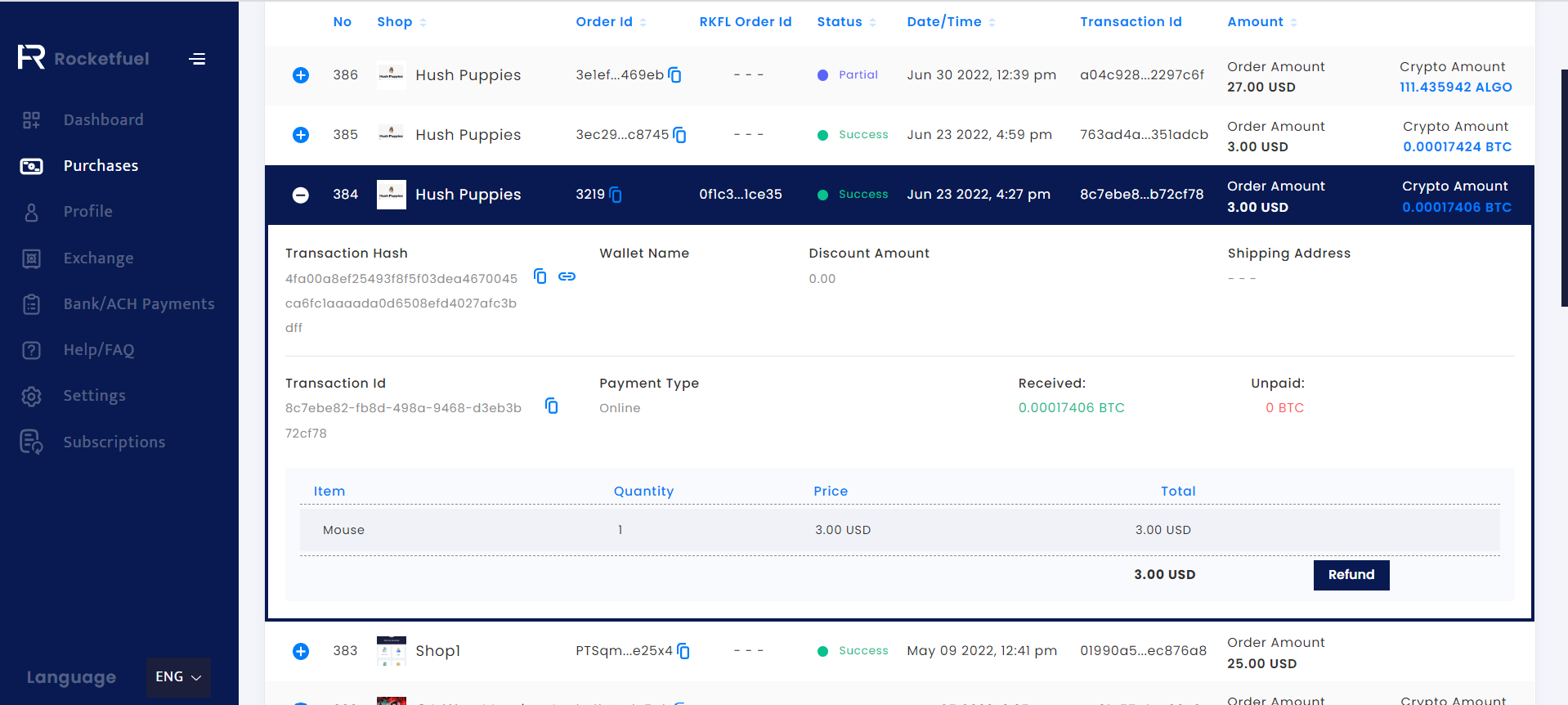
In the Purchases menu, you will see details of all your purchases. Clicking on the '+' icon will show all the details of your purchase. You will also see the option to request a refund on your partial payments. Clicking on the Refund button will give you the option to provide your reason for requesting a refund, and fill in the wallet address where you want the refund. After filling out all the details, you will be able to request a refund.
{% hint style="info" %}
You will see the Refund option for successful payments only if the merchant has it enabled for their store.
{% endhint %}
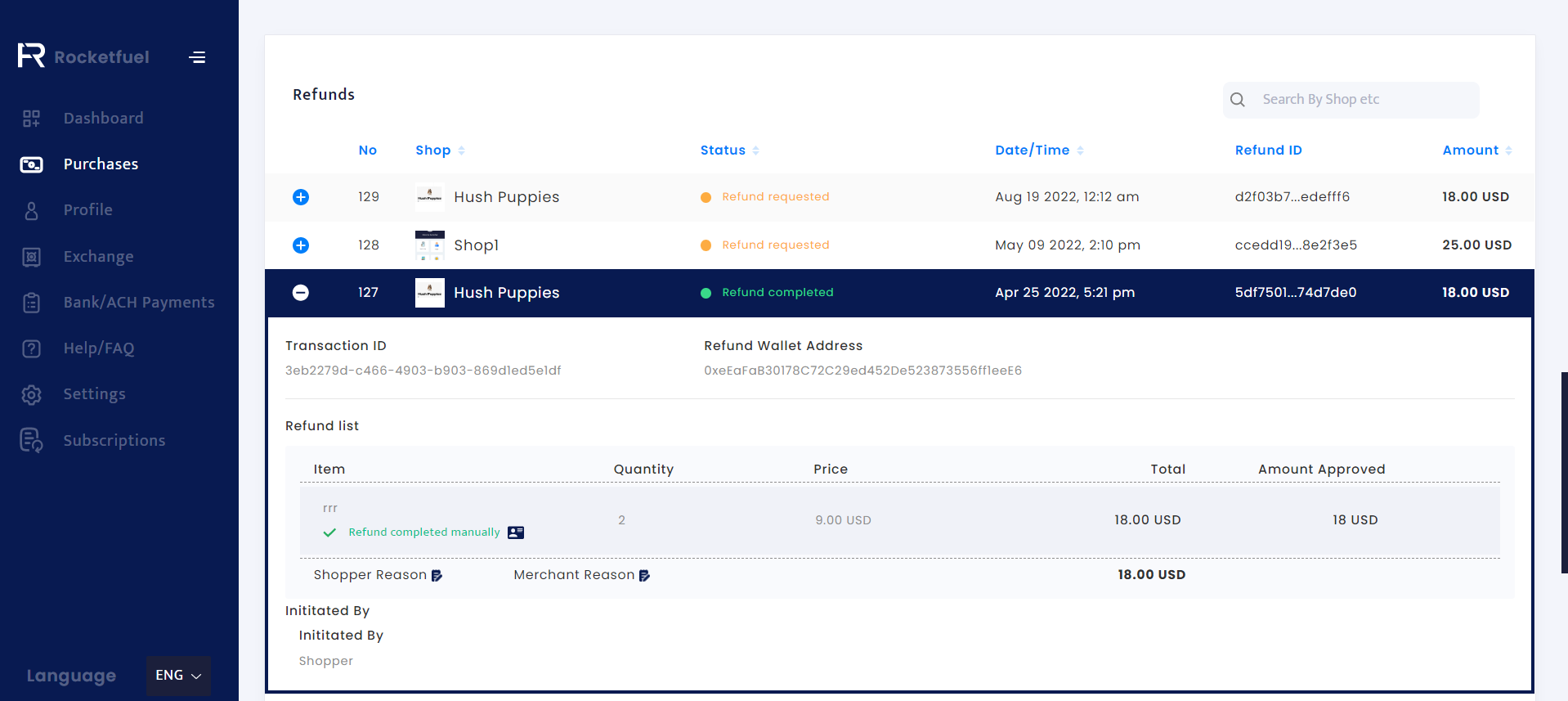
After you have requested the refund, you will be able to see the details of the refund requested in the Refunds table in the Purchases menu only. Clicking on the '+' icon will show all the details of your refund request.